 Goooy
GoooyGoooy Mail, Chat, Writer, Sheets & Slides
Five native desktop apps for mail, chat, documents, spreadsheets and presentations. Work in six languages, use familiar office ribbons, and start a deck with one of five editable Slides templates.
Choose your interface language
Mail, Chat, Writer, Sheets and Slides support English, Dutch, German, French, Spanish and Italian. English is the base and fallback language; changing the interface leaves your document and message content intact.
- Mail: Settings → General → Language and time.
- Chat: Settings → Appearance → Language; restart Chat to apply the change to every window.
- Writer, Sheets and Slides: File → Options → Languages and Locales → General. Choose the interface language and restart the office apps.
Office commands where you expect them
Writer, Sheets and Slides use classic ribbons with Fluent icons and contextual tools. The File menu brings together new, open, save, print and export, and returns you to your document when you close it.
Use Back or Escape to return from File to the editor. Tab reaches the menu actions, and the gallery scrolls independently of File navigation in smaller windows. Writer uses the operating system window controls; the duplicate buttons and Copilot ribbon buttons have been removed.
One connection, one sign-in
Configure the API and web-app addresses once in any desktop app. Mail, Chat, Writer, Sheets and Slides share those settings and your browser sign-in through the device’s secure credential store. Writer and Sheets no longer need a separate app password. Signing out ends the session across all five apps and keeps the server settings. Open documents retain their original server and local edits. Install the matching desktop and server updates to use shared sign-in.
Goooy Mail
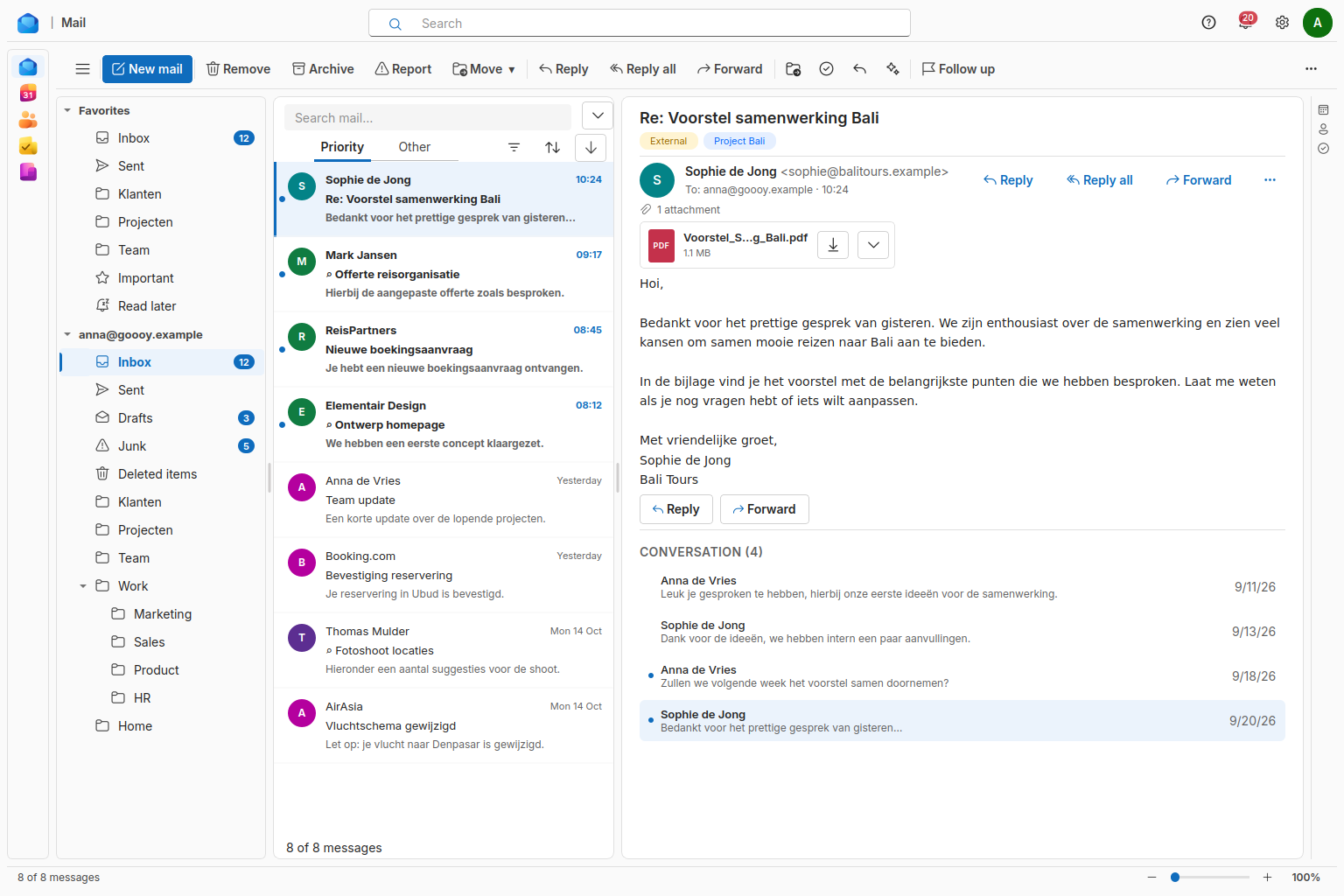
Read and compose messages, manage shared mailboxes, plan your calendar, and keep contacts, tasks and notes close at hand. Previously fetched content is readable offline, and local drafts synchronize when you reconnect. Sending needs a connection.
Mail has a persistent app rail and a familiar list-and-detail layout. Web and native features have separate availability and validation limits.
Set your Goooy server in the account menu, sign in through your system browser, and approve the connection. Your organization’s MFA, passkeys and SSO work through that sign-in flow. One account is active at a time. Mail opens Chat and meetings in the web app. You can also use the separate native Chat application.
Goooy Chat
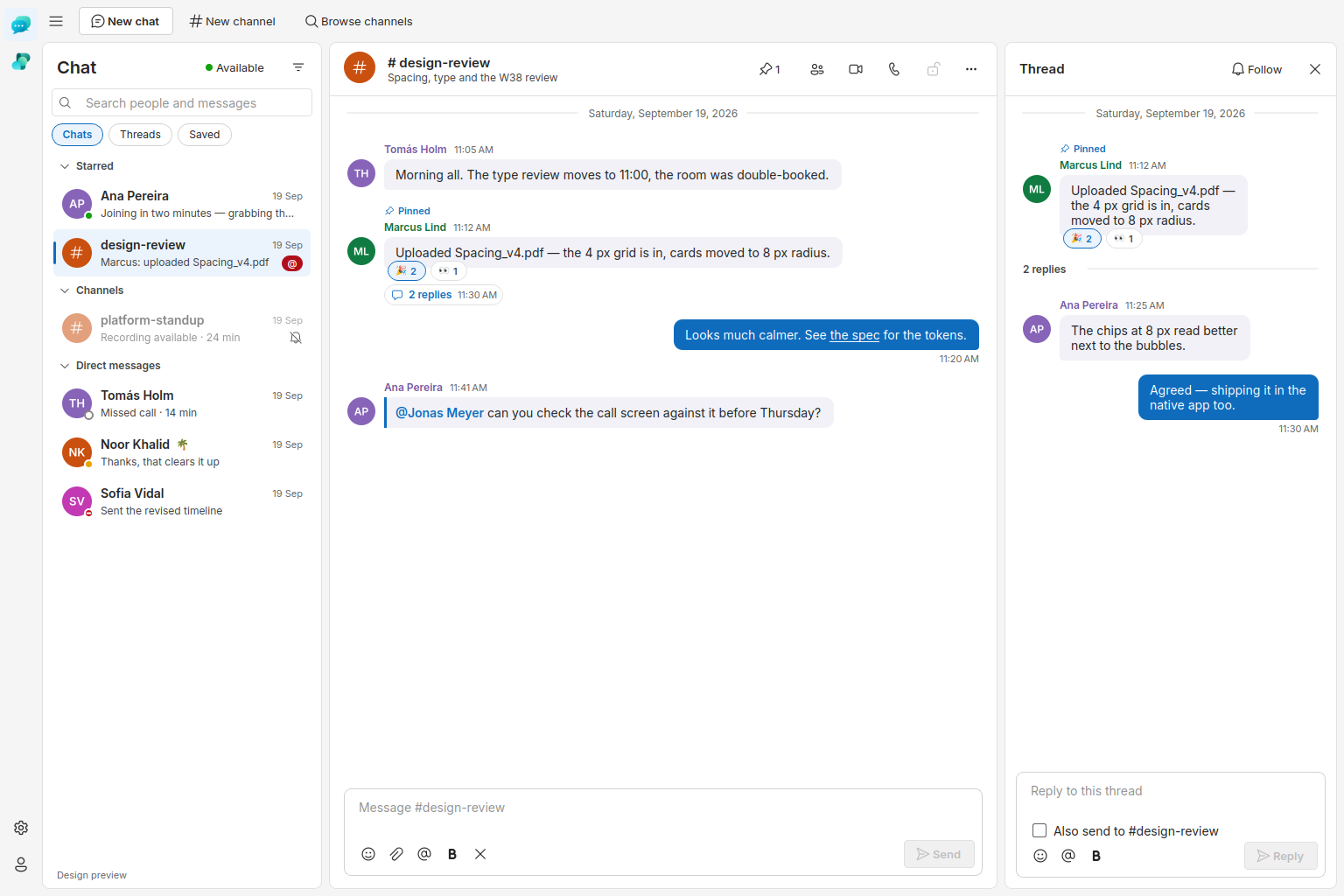
Native Chat keeps conversation history in memory and persists drafts. After a disconnected call, leave and rejoin.
Use direct and group conversations, public or private channels, threads, mentions, reactions and attachments, plus pinned messages, saved items, starred and muted conversations and a custom status. Desktop notifications cover direct messages, mentions and followed threads. Sign in through your browser using the same Goooy server as Mail. Chat also includes video meetings, device settings and call controls.
End-to-end encrypted conversations work in the desktop app too: messages, edits, replies and files are sealed on your device, compatible with the web app. The lock button sets up or unlocks your passphrase. Screen sharing requires Qt 6.7 or newer. Linux builds and synthetic media tests pass; physical-device and deployed-server interoperability still need validation.
Goooy Writer
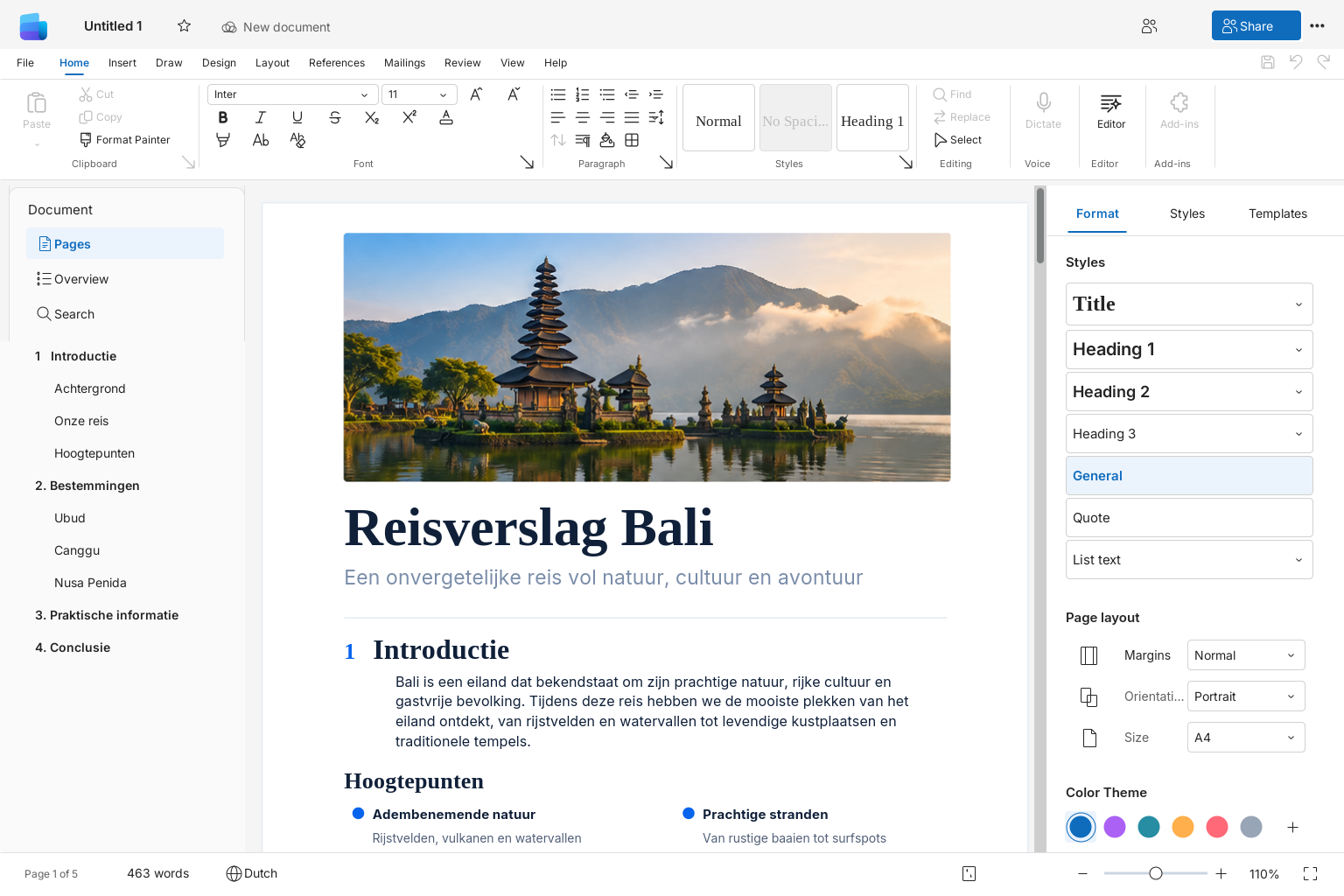
Create and edit DOCX and ODT documents with native formatting, page layout, printing and PDF export. Local editing works offline without an account.
Goooy documents use your shared desktop connection and browser sign-in. Open from Goooy opens a working copy; Save to Goooy uploads your changes. Ordinary Save / Ctrl+S saves locally. Cached copies remain available offline, and upload conflicts preserve your edits. Use the web editor for live co-editing; avoid simultaneous native and web edits.
Goooy Sheets
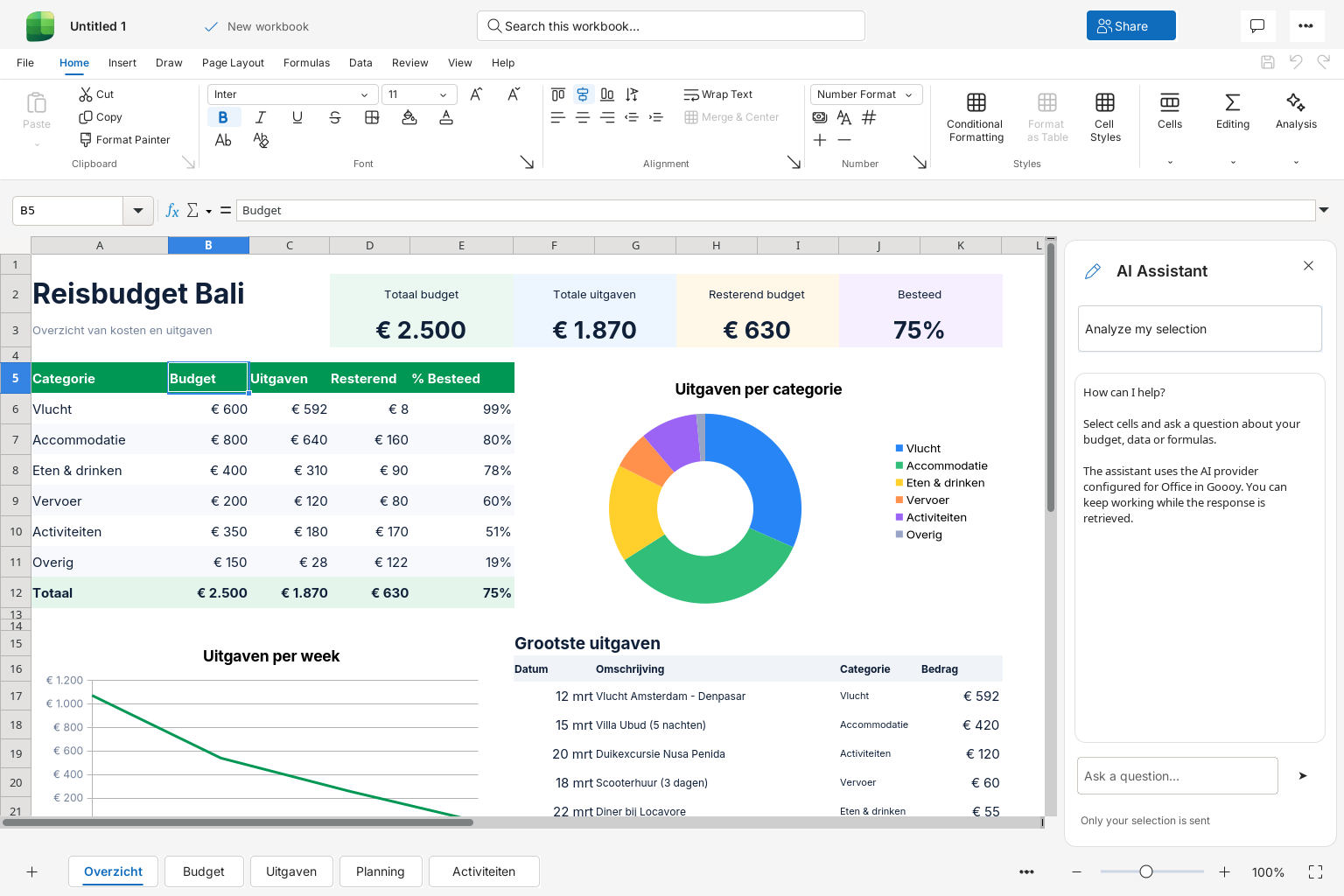
Work with XLSX, ODS and CSV files, formulas, filters, charts, printing and PDF export. Local workbooks work offline without an account. Writer, Sheets and Slides share one installation, with separate launchers.
The optional AI assistant reuses your shared desktop sign-in. It sends only the selected cells you submit with your question to your organization’s configured AI provider. Review and copy suggestions yourself; it does not change cells automatically. Live cloud collaboration is available in the web editors.
Goooy Slides
Build and present local PPTX and ODP decks with a slide filmstrip, speaker notes, transitions, presentation mode, printing and PDF export. Local editing works offline without an account. Slides shares one installation with Writer and Sheets.
Use the web editor for live collaboration. The desktop collaboration bridge is implemented but has not yet been validated end to end.
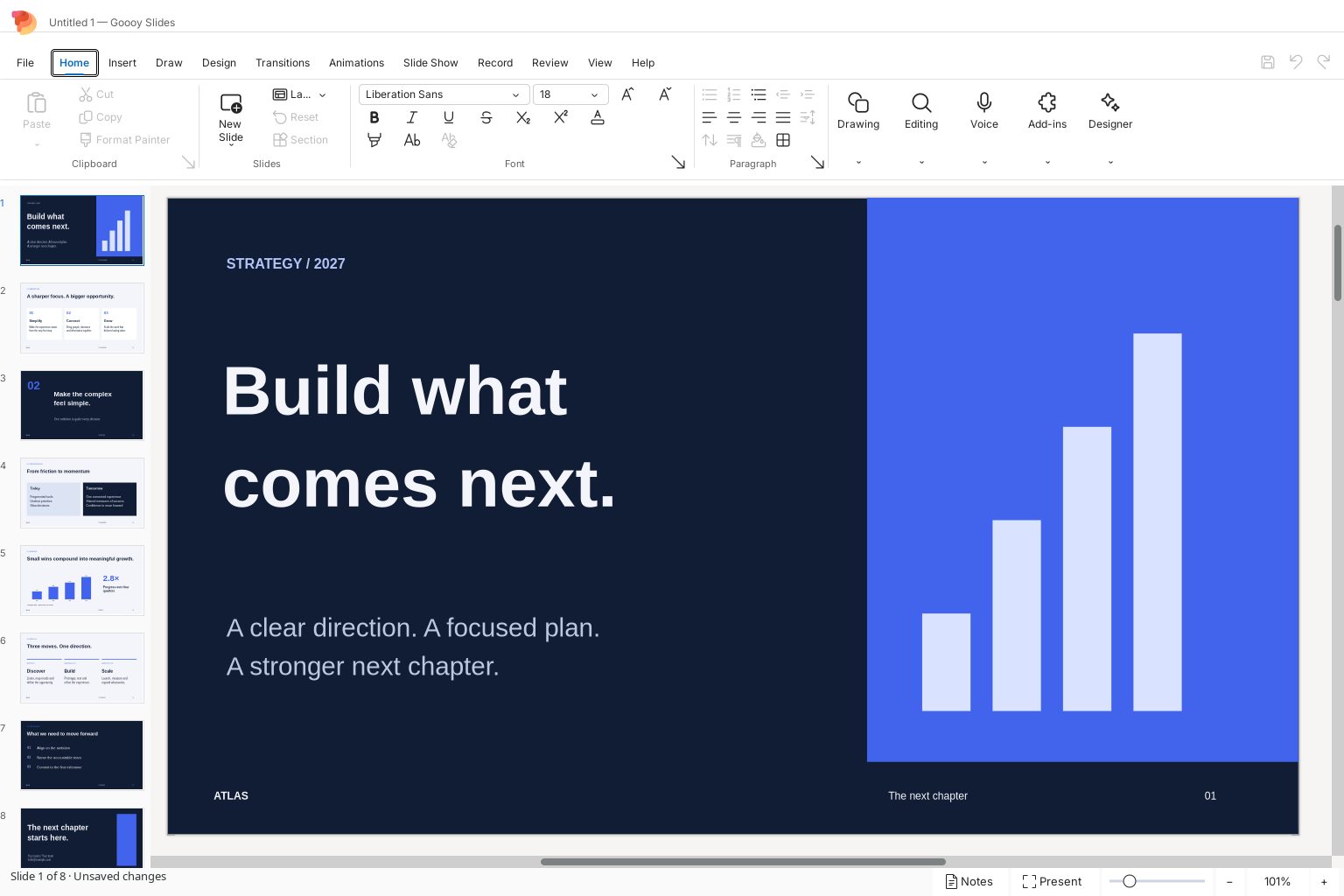
Five editable presentation templates
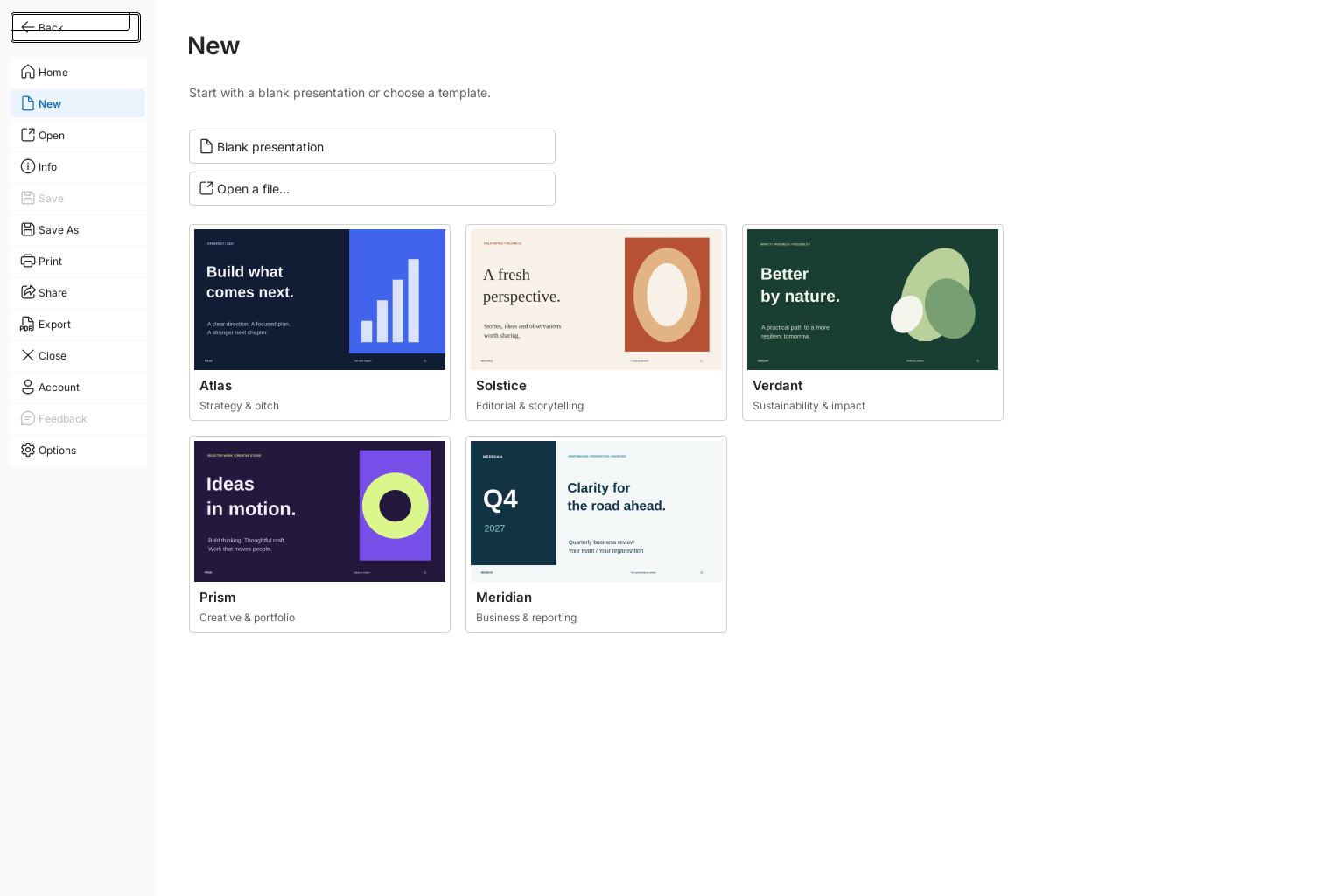
Choose a design in Slides’ File > New. Each template includes eight 16:9 slides with editable text, artwork and chart data, plus speaker notes.
| Template | Design |
|---|---|
| Atlas | Navy and cobalt for strategy and pitch decks. |
| Solstice | Warm tones and editorial typography for stories and ideas. |
| Verdant | Forest and sage for sustainability and impact reports. |
| Prism | Violet and lime for creative work and portfolios. |
| Meridian | Teal business reviews with metrics and priorities. |
- Open File → New or File → Home and select a template preview.
- Slides opens a separate, unsaved presentation. Your existing deck and the bundled template stay intact.
- Replace the sample text and chart data, edit artwork and speaker notes, and duplicate slides to reuse a layout.
- Save your own PPTX or ODP file. Use File to print or export PDF.
The previews use English sample content and illustrative figures. The gallery follows your interface language. Choosing a template opens a new, unsaved presentation.
Installation and availability
Selected Linux workflows have fixture and build evidence. This is not qualification of every feature, distribution or release package. Windows and macOS remain unvalidated.
Mail provides DEB, Fedora RPM and a portable bundle. Chat provides a tested Fedora 43 portable runtime and an Ubuntu 24.04 build. Writer, Sheets and Slides share DEB/RPM packages. Match the runtime to your Linux distribution; Ubuntu builds target Ubuntu 24.04 or compatible libraries. Windows and macOS build configurations are present but remain unvalidated.
Public replacement installers are not yet published here. Contact us for availability and rollout help. Developers can use the README in each source workspace: apps/mail, apps/chat, apps/writer, apps/sheets and apps/slides. Connected features require a matching Goooy server. Restart rebuilt office apps to load the new ribbons, languages and templates.
Moving from the previous desktop app
Configure the connection and sign in once for all five native apps; settings from the retired desktop wrapper are not imported. The previous background Drive folder sync and command-line sync client are retired. Keep local edits and finish pending transfers before uninstalling an old copy. The new apps do not automatically synchronize local folders.
Use Files in the browser, Writer’s explicit document uploads, or a third-party WebDAV client for server files. See the user guide for the rest of the suite.