 Goooy
GoooyGoooy User Guide
Your complete guide to using Goooy: email, calendar, contacts, tasks, notes, chat, files, video meetings and live document editing, all behind one login.
Goooy is a groupware suite: one place for everything a team needs to communicate and collaborate. If you’ve used Outlook on the web or Microsoft 365, Goooy will feel immediately familiar: a top suite bar, a vertical app rail down the left edge, and your current app filling the rest of the screen. This guide walks through every app from a day-to-day user’s point of view.
- New to Goooy? Start with Getting started.
- Looking for something specific? Jump straight to Mail, Calendar, Contacts, Tasks, Notes, Chat, Files, Meet, or Office.
- Setting up a phone or desktop app? See Connect your devices.
Getting started
Signing in
Open Goooy in your browser and sign in with your email address and password.
Your address is your full email (for example you@yourcompany.com), the same
address you’ll use for mail, your calendar invitations, and connecting native
apps.
If your organization uses single sign-on (SSO), you may be redirected to your company’s identity provider (the same login you use for other corporate apps). After you authenticate there, you’re returned to Goooy already signed in, no separate Goooy password needed.
Your session stays signed in on that browser and refreshes itself silently in the background, so you won’t be kicked out mid-task. Use Sign out from the suite bar to end the session on a shared computer.
Two-factor authentication (2FA)
You can protect your account with a time-based one-time code from an authenticator app (Google Authenticator, 1Password, Authy, and similar).
- Open your profile / security settings and choose Set up two-factor authentication.
- Scan the QR code with your authenticator app.
- Enter the 6-digit code it shows to confirm.
- Save your recovery codes somewhere safe. They’re shown only once and let you back in if you lose your phone.
After that, signing in asks for your password and then the current 6-digit code. If your organization requires 2FA, Goooy will walk you through this setup the first time you sign in and won’t let you into the app until it’s done.
Finding your way around
- Suite bar (top): search, your account menu, sign out.
- App rail (left): switch between Mail, Calendar, Contacts, Tasks, Notes, Chat, Files, Meet, and Office. The app you’re in is highlighted.
- Main area: the current app. Most apps use a list-and-detail layout. Pick something on the left, see it on the right.
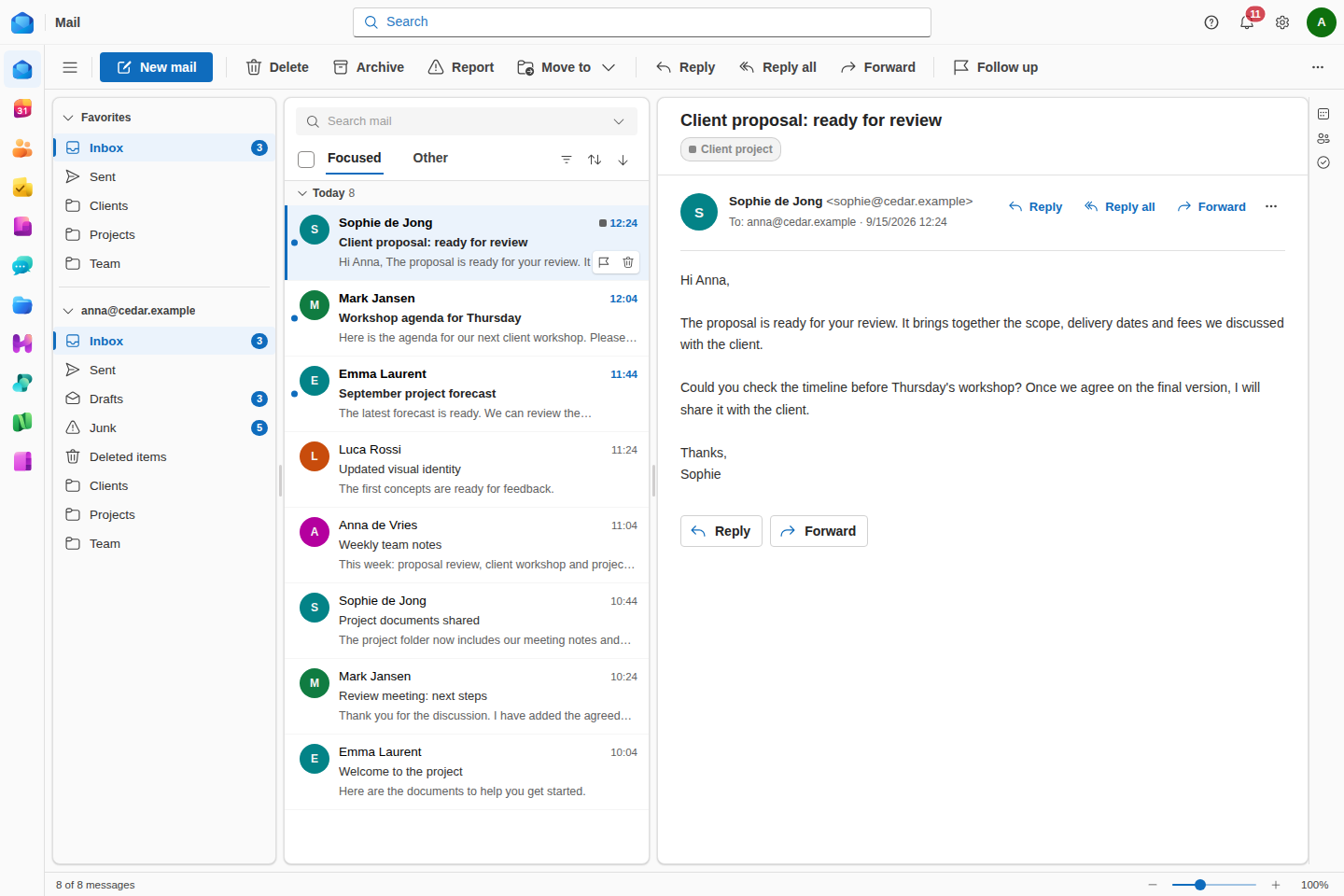
Mail has a persistent app rail and a familiar list-and-detail layout. Web and native features have separate availability and validation limits.
Reading mail
- Pick a folder (Inbox, Sent, Drafts, Junk, Archive, Trash, or any folder you’ve made) to see its messages.
- Click a message to read it in the reading pane. Goooy shows the sender, recipients, date, the message body, and any attachments.
- HTML email is sanitized for safety before it’s displayed. Tracking scripts and dangerous markup are stripped, so simply opening a message can’t run anything malicious. Remote images are handled conservatively for your privacy.
- Conversations. Switch a folder to conversation view and replies collapse into the thread they belong to. The open message shows the rest of the conversation underneath it either way.
- Where the reading pane sits is up to you: right, bottom, or off. There is a zoom control in the status bar for a message set in small type, and it is remembered.
- Open a message in its own window, or a folder, or a whole workspace, when you want to keep it next to what you are doing.
- Attachments have a chevron: open, save as, or save straight to Goooy Files without downloading first.
- Translate a message you cannot read into the language the app is in. The original is always one click away, and nothing is stored: the message on disk stays the one that arrived.
Composing, replying and forwarding
- New message opens the composer. Add recipients in To / Cc / Bcc, a subject, and your message, then Send.
- Reply, Reply all, and Forward are on every open message and keep the original thread quoted.
- Attach files from your computer. Attachments are stored securely and travel with the message.
- Not finished? Your work is saved to Drafts so you can pick it up later.
- The address book opens from the To / Cc / Bcc labels: your organization’s directory and your own contacts in one searchable list you can pick several people from. Check Names resolves what you typed before the message goes out.
- Formatting runs to font family and size, grow and shrink, indent, alignment, lists, colour, named styles (Heading, Quote, Preformatted), a format painter, and find and replace inside the message you are writing.
- Spell check underlines as you type. Right-click a word for suggestions, or for Ignore all and Add to dictionary. It follows the language the app is in.
- Signatures are a named list rather than a single block. One signature can be the default for several sending addresses, and an address can use one signature for new mail and another for replies.
Organizing your inbox
- Move messages between folders, or create your own folders to file things away. (A few well-known folders (Inbox, Sent, Drafts, Junk, Trash) are protected so they can’t be accidentally renamed or deleted.)
- Flag important messages, and mark messages read/unread.
- Archive clears a message out of the Inbox without deleting it. It’s still fully searchable.
- Delete moves a message to Trash.
- Drag folders to reorder or renest them, drop one onto Favourites, and rename in place. The Move picker remembers where mail usually goes and offers those folders first.
- Importance (high or low) and a follow-up date sit on the message itself, so a flag can mean by Friday instead of just flagged.
- Quick Steps are one-click macros over several actions at once: file it and mark it read, forward it to the team, reply and delete. You define them yourself and they sit on the ribbon.
Views
- Columns are yours to choose and reorder, and the list can be arranged by date, sender, subject, size, importance, category, attachment and more. Sorting applies to the whole folder, not only the page you can see.
- Save a set of columns, an arrangement and a reading-pane position as a named view, and switch between them.
- Message preview shows one, two or three lines of the body under each subject, for this folder or everywhere.
Search
Full-text search finds messages by sender, subject, or anything in the body. Use it from the search box to dig up that one email from months ago in seconds.
- A query language narrows it down:
from:,to:,cc:,subject:,body:,category:,has:attachments,is:unread(alsoread,flagged,pinned,draft,important),after:andbefore:. Put a-in front of any of them to exclude it. The refine chips under the box add and remove those clauses for you, so there is no syntax to memorize. - Scopes decide how wide to look: this folder, this folder and everything under it, the whole mailbox, or every mailbox shared with you. Deleted Items stays out of it unless you are searching there on purpose.
- Recent searches come back from the box, matches are highlighted in the results, and a search you keep running can be saved as a search folder that sits in the folder list like any other folder.
Follow-ups and reminders
- Flag a message for a date and it becomes something owed instead of something coloured.
- The Reminders window is one list of everything that is due, wherever it came from: calendar events, tasks, and mail flagged for follow-up. Snooze one for five minutes, fifteen, an hour or until tomorrow, dismiss it, or dismiss the lot. Answering a reminder never changes the thing it is about, so dismissing a task’s reminder does not complete the task.
- Reminders follow you between the browser and the desktop app. Dismiss one in either and it is gone in both.
The To-Do Bar and Peek
- The To-Do Bar docks down the right of the mail window and shows your Calendar, People or Tasks without leaving your inbox. The Tasks pane is what is owed: your task list and the mail you flagged for follow-up, in the same buckets (Overdue, Today, This week, Later, No date), so a message flagged for Friday sits beside the task due Friday. Type in the box at the top and press Enter to make a task.
- With the bar off, Peek keeps all three one hover away on a strip at the edge, and the pin in the popup docks it for good.
Making Mail yours
- The Quick Access Toolbar is yours to build. Right-click any ribbon command to pin it, and put the toolbar above or below the ribbon.
- Collapse the folder list to an icon rail when you want the screen for mail.
- The status bar along the bottom counts what is in the folder, what is selected and what is unread, and holds the reading-pane zoom.
- Every ribbon command’s tooltip names its keyboard shortcut, and the help pane (?) searches every screen’s shortcuts and topics. If your organization runs a helpdesk, that pane also has the button that writes to it.
Junk and spam
Incoming mail is automatically scored for spam on arrival, and likely junk is filed into your Junk folder so it stays out of your Inbox. If something legitimate lands in Junk, move it back to the Inbox; if junk slips through, move it to Junk.
Turn an email into a task
See “Email → task” under Tasks. Any message can become a to-do in one step, so an action item never gets lost in your inbox.
Calendar
The Calendar app shows your schedule in a month view with an event editor for creating and changing events.
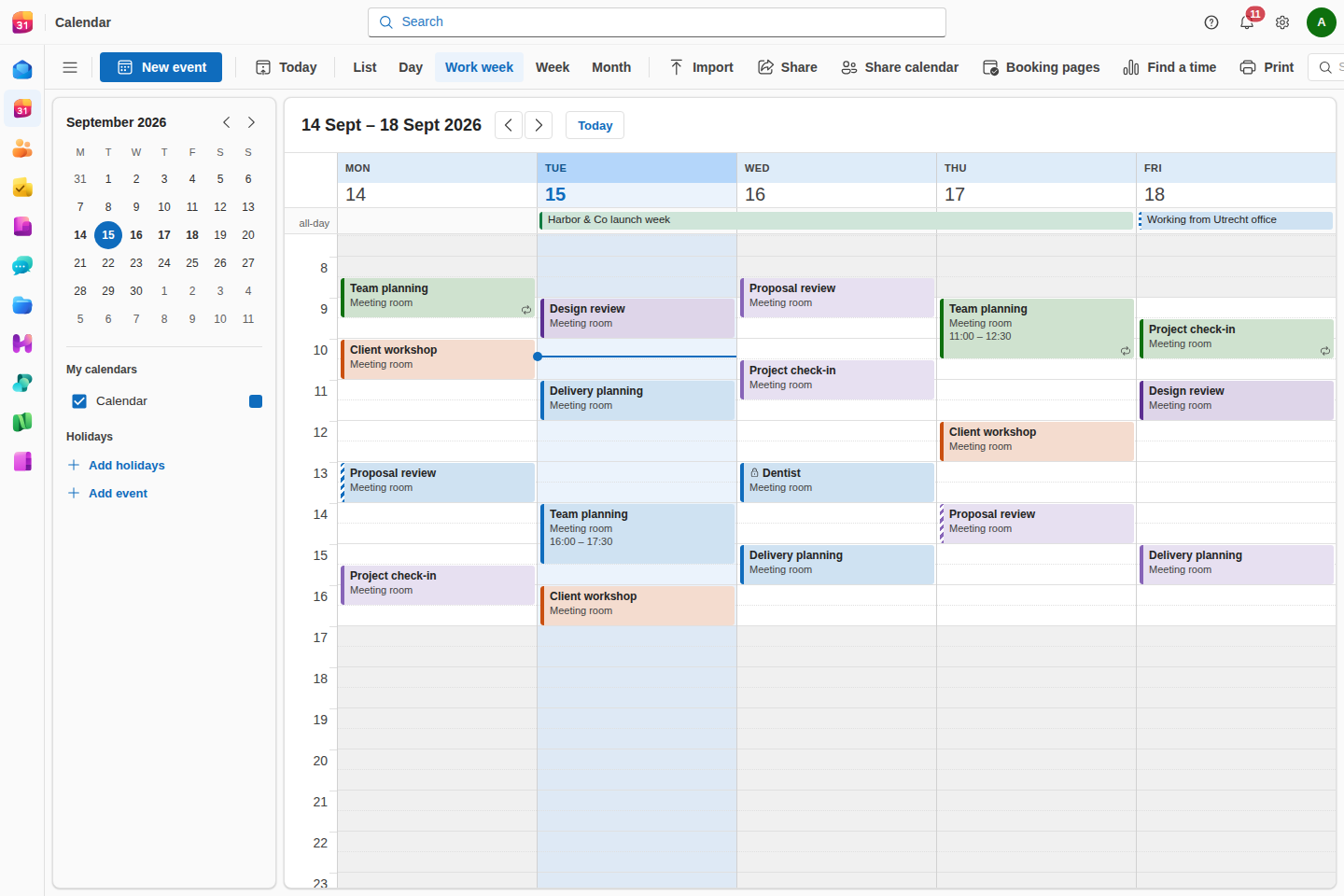
Creating and editing events
- Click a day (or New event) to create one. Give it a title, start and end time, an optional location, and notes.
- Open any existing event to edit or delete it.
Recurring events
Goooy supports full recurrence rules (the same iCalendar RRULE standard Outlook and Google Calendar use): daily, weekly, monthly, yearly, “every second Tuesday”, and so on. Set it once and the series fills in your calendar automatically.
Inviting people and free/busy
- Add attendees to an event and they’re invited.
- Attendees can respond (accept / decline / tentative), and you’ll see their responses on the event.
- Free/busy lets you see when people are available before you pick a time, so you’re not guessing around everyone’s existing meetings.
Sharing and importing calendars
- Export events as standard iCalendar (.ics) files to share with anyone, or
import an
.icsto bring events in. - Your calendar is also available over CalDAV, so Apple Calendar, Thunderbird, and phones can subscribe to it directly. See Connect your devices.
Contacts
A two-pane address book: your contacts on the left, the selected contact’s details on the right.
- Create, edit and delete contacts with names, multiple email addresses and phone numbers, organization, and more.
- Organize people into groups.
- Search across all your contacts.
- Import and export vCards (
.vcf) to move contacts in and out, or to back them up. - The Global Address List (GAL) is your organization’s shared directory. Find any colleague’s contact details without having to add them yourself.
- Contacts sync to phones and desktop apps over CardDAV (see Connect your devices).
Tasks
Keep track of everything you need to do, with as much or as little structure as you like.
- Each task has a status, priority, percent complete, and an optional due date.
- Recurring tasks automatically advance to their next occurrence when you complete them, perfect for “submit timesheet every Friday”.
From an email
Turn any email into a task in one step (“email → task”). The task keeps a link back to the original message, so the context is never lost. This is the fastest way to make sure an action buried in your inbox actually gets done.
Notes
Notes are quick, colorful sticky notes for the things that don’t belong anywhere else: a phone number, an idea, a snippet of text. Create a note, give it a color to keep things visually sorted, and it’s there whenever you need it.
Chat
Real-time messaging for your team, built right into the suite.
- Direct messages for one-to-one conversations and group channels for teams or topics.
- See who’s online (presence) and when someone is typing.
- Full message history is kept, so you can scroll back or search for what was said.
Because chat is real-time, messages appear instantly for everyone in the conversation, no refresh needed.
Files
Your personal and shared cloud drive, with versioning and secure sharing.
Organizing files
- Upload files and arrange them in folders.
- Move, rename, and delete as your drive grows.
- Search to find a file by name.
Versioning
Every time you upload a new copy of a file, Goooy keeps the previous versions automatically. If you need to go back to an earlier draft, the history is there.
Sharing with people outside Goooy
Create a public share link for any file to send to someone who doesn’t have a Goooy account. For control, you can:
- Protect the link with a password.
- Set an expiry date so the link stops working after a while.
Comments
Leave comments on files to discuss them with collaborators without sending a separate email.
Tip: Office documents live in your Files drive too. See Office.
Ask for a signature
Right-click a PDF and choose Request signatures to send it out for signing. Add signers by email address (they do not need a Goooy account), write a short message, and choose whether they sign in parallel or in a set order.
Each signer gets a private link, reviews the document in the browser, and draws
or types their signature. When the last one signs, Goooy stamps every signature
into the PDF, adds a certificate of completion listing who signed, when and
from where, and files the finished copy back in your Drive as
“
Helpdesk
If your team answers a shared address like support@, info@ or sales@, the
Helpdesk app turns that shared mailbox into a queue. It is still the same
mailbox underneath, so anything you already do with it keeps working.
Tickets
Every incoming message becomes a ticket with a key like TCK-42, an owner,
a status and a priority. Open one and you get the whole conversation, that
customer’s earlier tickets, and a history of who changed what.
- Assign a ticket to yourself or a colleague and it appears in their queue.
- Status moves through open, pending and resolved; quiet tickets close themselves if your queue is set up that way.
- Tags group tickets by product, customer, or whatever you sort by.
Answering without collisions
While you have a ticket open, everyone else looking at it sees you there, and you see them. If a colleague starts typing a reply, you find out before you send a second answer to the same customer.
Canned replies are shared templates: pick one, adjust the details, send. Your reply goes out from the shared address with the ticket key in the subject, so the customer’s answer lands back on the same ticket instead of opening a new one.
Service levels
Each queue has a first-response and a resolution target measured in business hours, so a ticket that arrives on Friday evening is not already late on Monday morning. Tickets close to their target are highlighted, and a breach is recorded in the ticket’s history.
Meet (video meetings)
Browser-based video meetings, no plugin or app to install.
- Start or join a meeting straight from your browser.
- Camera and microphone for everyone in the room, plus screen sharing to present your screen.
- In-meeting chat for links and side comments.
Your audio and video travel directly between participants wherever possible (peer-to-peer), which keeps calls fast and private. Goooy’s server only helps the participants find each other, it doesn’t sit in the middle of your media.
Meetings work best on a modern desktop browser. For larger or more challenging networks, your administrator can configure relay servers so calls connect reliably even behind strict firewalls.
Office (documents & spreadsheets)
The browser provides collaborative document models. Saving regenerates the file and can lose formatting or features outside that model. Check representative files before switching. Native Writer and Sheets do not provide live cloud coediting.
Goooy Writer. Use Writer for text, styles, tables and page layout. Open DOCX and ODT, then export a PDF. The native app saves local files and offers explicit upload to Goooy.
Goooy Sheets. Build budgets and project forecasts in Sheets with formulas, charts and filters. Work with XLSX, ODS and CSV. Native Sheets saves locally; cloud upload is a separate step.
Goooy Slides. Build a deck in Slides or start with one of five editable designs. Work with PPTX and ODP. Native Slides is local first; its cloud collaboration bridge is experimental.
Connect your devices
Mail, calendar, contacts and files have protocol interfaces including IMAP, SMTP, CalDAV, CardDAV and WebDAV. Client versions and account policies need individual testing. Real Outlook interoperability, Outlook mobile and Exchange parity are not established.
Automatic setup (Autodiscover / autoconfig)
Ask your administrator for the server address, TLS requirements and account policy. Discovery depends on the client version; verify the resulting settings.
Mail (IMAP / POP3 / SMTP)
IMAP and POP3 receive mail; SMTP sends it. A configured mail stack is required. Use the authentication method supplied by your administrator and test sending and receiving.
Calendar (CalDAV) and Contacts (CardDAV)
CalDAV and CardDAV expose calendars and contacts. Verify discovery, updates and account authentication with the actual client version.
Phones (Exchange ActiveSync)
The EAS implementation is a subset. Physical iOS and Android qualification is pending. Outlook mobile support is not established.
Native Outlook for Windows
MAPI/HTTP and EWS interfaces are implemented with limitations. Actual Outlook for Windows interoperability remains unverified; this is not Exchange parity.
Tips & good habits
- Turn on 2FA. It’s the single best thing you can do to protect your account.
- Archive, don’t delete. Archived mail stays searchable but out of your way.
- Make an email a task instead of leaving it in your inbox as a reminder.
- Use free/busy before proposing meeting times to avoid the back-and-forth.
- Password-protect and expire share links when sending files outside the company.
- Co-edit instead of emailing attachments. Open the document in Office and share the link; everyone always has the latest version.
Getting help
If something isn’t working (you can’t sign in, a device won’t connect, or a feature is missing), your organization’s administrator manages your Goooy account and can help. They can reset access, check your device enrollment, and confirm the server settings for your mail, calendar, and contacts apps.